Fixing a miscategorized paycheck
When a payroll deposit lands in the wrong category, the wrong month, or is missed entirely: set the category, teach the rule, and set the effective date.
Updated September 5, 2026 · 2 min read
Ample recognizes your paychecks by the employer's name on the deposit and an amount close to your net pay. Most of the time that is enough. When it is not, three fixes cover every case.
The paycheck is in the wrong category
Banks describe payroll deposits oddly ("DAVE'S HOT PAYROLL DIR DEP" one month, "DHC PAY" the next), and occasionally a deposit lands in a merchant-like category.
- Open Transactions and find the deposit.
- Tap the category and choose Income.
- Choose Apply to matching when prompted, and Ample creates a rule for that description so future deposits are categorized the same way.
A category you set by hand is never overwritten by a sync. You can see and edit the rule under Settings › Rules; rules match merchant words, an amount range and an account, and can also rename a description ("DHC PAY" → "Paycheck") or hide a row.
The paycheck is in the wrong month
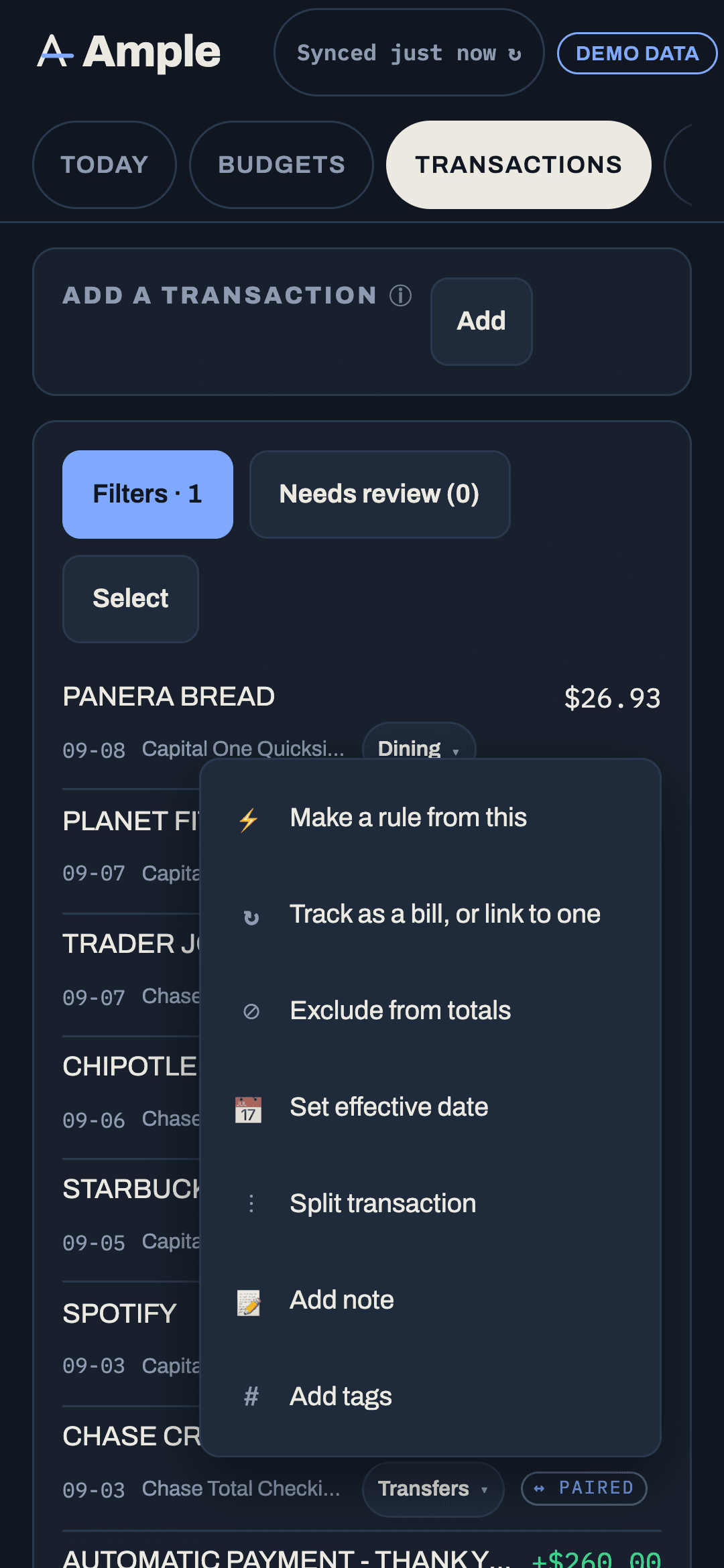
If your official payday is the 1st and the bank releases the deposit on the 30th, the check belongs to next month even though it posted this month. Ample handles this automatically with the early release setting: a payroll deposit posting within the early-release window before an official payday is tagged with that payday as its effective date, and month-based figures (the income line, 3-paycheck months, mortgage halves) use it.
If a deposit did not get tagged, or got tagged wrong:
- Open the transaction's ⋯ menu and choose Set effective date.
- Pick the official payday it belongs to.
The row now shows the effective date with "posted Dec 30" as a muted suffix. Clear effective date undoes it. Hand-set effective dates are never changed by the automatic rule. Cash math (this paycheck's plan, the buffer) still uses the posted date, because the money really was there early.
A paycheck was not detected at all
Payroll verification lives on the Income report: the Payroll badge names the employer deposits Ample matched. If a deposit is missing, its description probably does not match and its amount was not within 2% of your net pay (a bonus, back pay, or a short check).
- Categorize it as Income as above and apply the rule.
- If your net pay has changed, update it under Settings › Preferences › Paycheck so the amount match works going forward.
Once categorized as Income, the deposit counts in the income line for its effective month and shows in the Income report's paycheck count.
Two deposits for one paycheck
Split deposits (part to checking, part to savings) show as two transactions. Both should be Income; the paycheck count treats deposits on the same payday as one check. If the savings portion is landing as a transfer, set its category to Income and Ample counts it.
Something else looks wrong
If income totals still look off, open the Income report and compare the paycheck rows against your pay stubs for the month; the effective-date suffix tells you which month each was counted in. Write to us with the month if it does not add up; we will look at the rule and the dates with you.
More in Account & security
Still stuck?
Tell us what you were trying to do and what happened. A person reads every message.
Contact support